Task:
- presentation / Blog post for the following topics
- macOS Arch
- macOS Layers
- macOS System Directories
- Apple Properity File System ( APFS ) INCLUDING :
- protection
- macOS filesystem,
- firmlinks
- PLIST Files
- Bundles
- dyld
- mach-O file format
- macOS Arch
Sources :
General sources
- Books:
- [MacOS and iOS Internals, Volume I](file://../MacOS and iOS Internals, Volume I.pdf)
- Advanced Apple Debugging & Reverse Engineering.pdf
- mach-o
- For518 <– missing
- Books:
APFS
- Apple official resourcces :
- Apple File System Reference: Official, but incomplete APFS spec
- introducing Apple File system (this video was deleted form apple docs) <- useless
- Decoding the APFS file system: Paper by Kurt H.Hansen and Fergus Toolan Fergus in Digital Investigation. Published: 2017-09-22.
- Vulns !
- CVE-2017-7149
- {add more here}
- Apple official resourcces :
Plist
- Property List Programming Guide - Complete guide to plists
- info.plist
- Information Property List Key Reference - All standard keys
- Core Foundation Keys - Modern key reference
- Advanced PLIST Topics
- Code Signing & Entitlements
- Entitlements Documentation - Security entitlements in plists
- Code Signing Guide - Relationship with Info.plist
- Managed Preferences (MDM)
- Configuration Profile Reference - Enterprise plist management
- MDM Protocol Reference - Device management plists
- Code Signing & Entitlements
Bundles
- Official Apple Documentation
- Bundle Programming Guide - Complete bundle architecture
- Bundle Resources - Modern documentation
- NSBundle Class Reference - Bundle APIs
- App Bundle Structure - Modern bundle layout
- Official Apple Documentation
dyld (Dynamic Linker)
- Official Apple Documentation
- dyld Source Code - The actual source (best documentation)
- Dynamic Loader Release Notes - Version changes
- Dynamic Library Programming Topics - Comprehensive guide
- Understanding the Cache
- dyld Shared Cache Format - Technical details
- Extracting Libraries from dyld_shared_cache - Extraction tool
- The dyld Shared Cache - Deep dive article
- Blog Posts & Articles
- Mike Ash: dyld Dynamic Linking - Excellent walkthrough
- Dynamic Linking - Detailed mechanics
- Understanding dyld - Modern deep dive
- Official Apple Documentation
Mach-O File Format
- Official Apple Documentation
- Mach-O Programming Topics - Official guide
- OS X ABI Mach-O File Format - Complete specification
- Mach-O Runtime Architecture - Runtime details
- Comprehensive Guides
- Parsing Mach-O Files - Alex Denisov’s tutorial
- The Mach-O Executable Format - Detailed walkthrough
- Let’s Build a Mach-O Executable - From scratch tutorial
- Security Research
- iOS App Reverse Engineering - Mach-O in iOS context
- macOS Code Injection - Security implications
- Mach-O Tricks - Advanced techniques
- Sample Projects
- Write a Mach-O Loader - Educational implementation
- Minimal Mach-O Executables - Smallest valid files
- Mach-O Kit - Objective-C framework
- GitHub Projects
- mach-o Parser in Go - Go implementation
- LIEF Project - Multi-format binary parser
- machomachomangler - Mach-O manipulation
- Code Signing
- Code Signing Guide - Integration with Mach-O
- Code Signature Format - Signature structure
- Official Apple Documentation
extra:
Topics
- Mac OS architecture
- history
- overall view
- Darwin
- XNU
- MACH
- BSD
- kEXTs
- APFS
- general introduction
- volumes & partitions
- System volumes
- Signed System Volume
- SIP
- firmlinks
- Bundles
- PLIST Files
- dyld
- general introduction
- mach-O
- general intro
- mach-o header
- The Load Commands
- segments
Blog
1. Mac evolution from system 1 to today
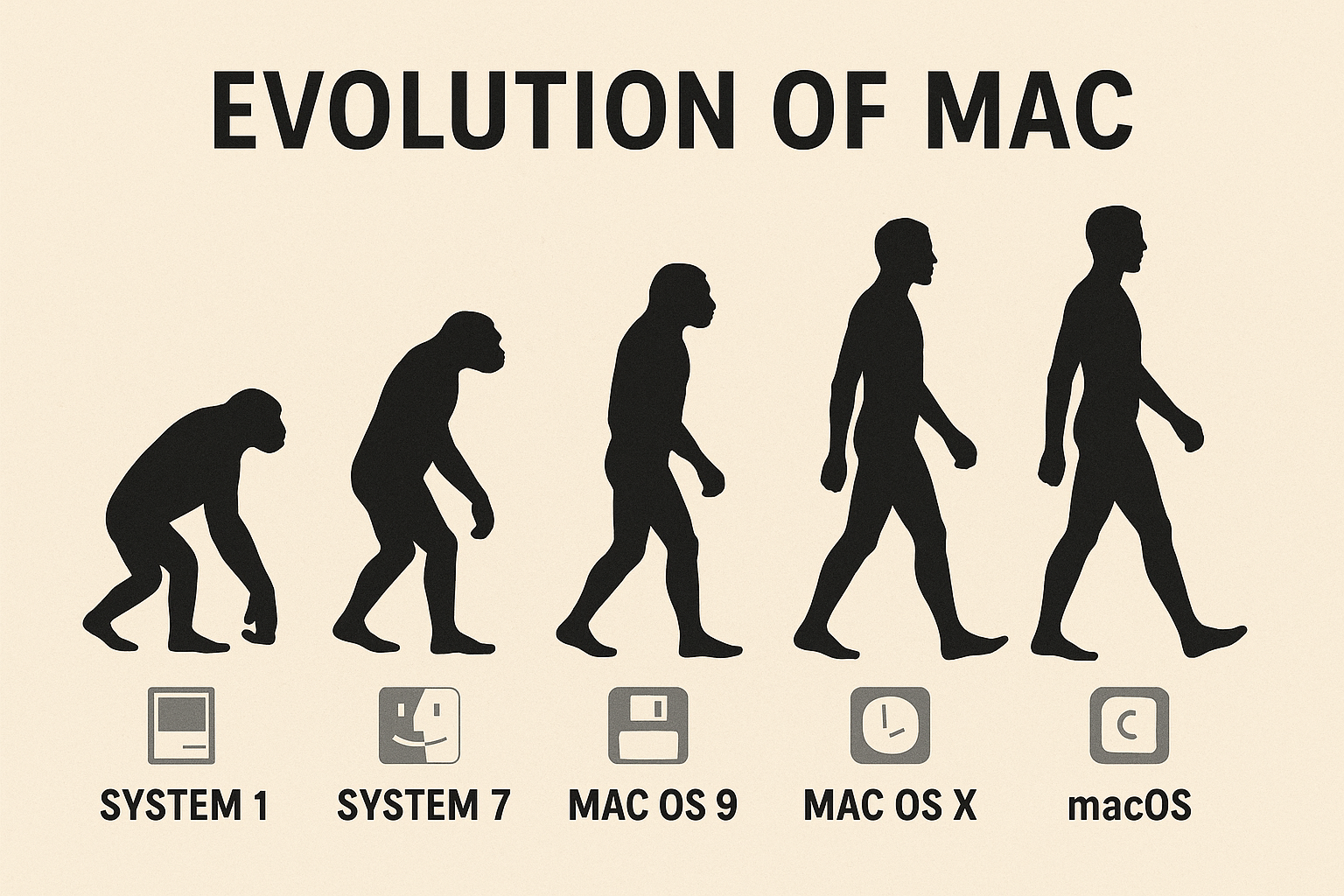
Understanding where macOS came from helps contextualize its current architecture:
The NeXT Connection (why literally every thing starts with NS ) When Steve Jobs left Apple , he founded NeXT Computer and developed NeXTSTEP, a Unix-based operating system built on the Mach microkernel and BSD. This OS was revolutionary, featuring an object-oriented API and advanced development tools.
Apple acquired NeXT , bringing Jobs back and inheriting NeXTSTEP’s technology. Apple combined NeXTSTEP with elements of the classic Mac OS to create Mac OS X as version 10.0 “Cheetah.”
Through versions 10.0 to 10.15, the system was called “OS X” or “Mac OS X.” In 2016, Apple rebranded it to “macOS” to align with iOS, watchOS, and tvOS. Today’s macOS has evolved significantly while maintaining its Unix foundation, especially with the transition to Apple Silicon
2. Mac OS architecture
macOS presents a beautifully layered architecture that combines Unix heritage with Apple’s innovative design. At its core, the system is built on several key layers:
The Architecture Stack:
- User Experience Layer: Aqua, Spotlight, and the applications we interact with daily
- Application Frameworks: Cocoa, Carbon, and various APIs (AppKit, Foundation, Core Data)
- Graphics and Media: Core Graphics, Core Animation, Metal, AVFoundation
- Core Services: Launch Services, Core Foundation, System Configuration
- Darwin: The Unix foundation (kernel, drivers, and core utilities)
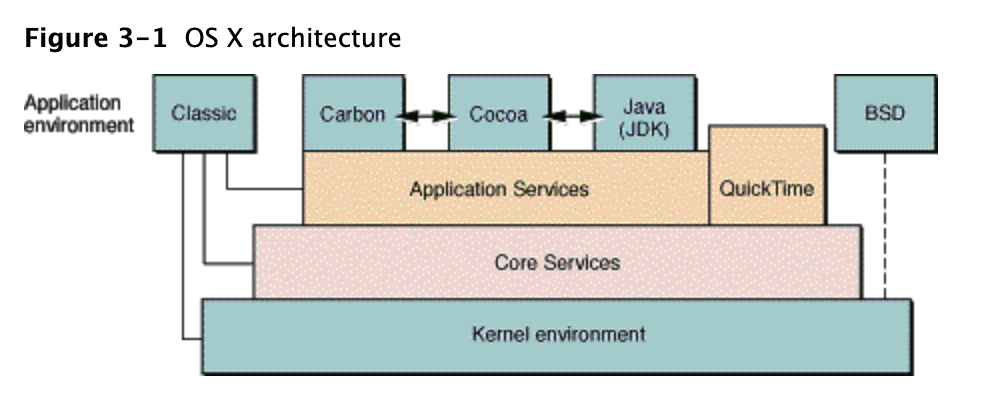
Darwin is the Unix-based core of macOS, and it’s actually open source! This might surprise many, but you can browse Darwin’s source code at opensource.apple.com (older versions contain much much more code/info that newer ones !)
Darwin consists from :
- XNU kernel
- Device drivers and kernel extensions
- Standard Unix utilities and libraries
- Network stack and file systems
- Low level system daemons
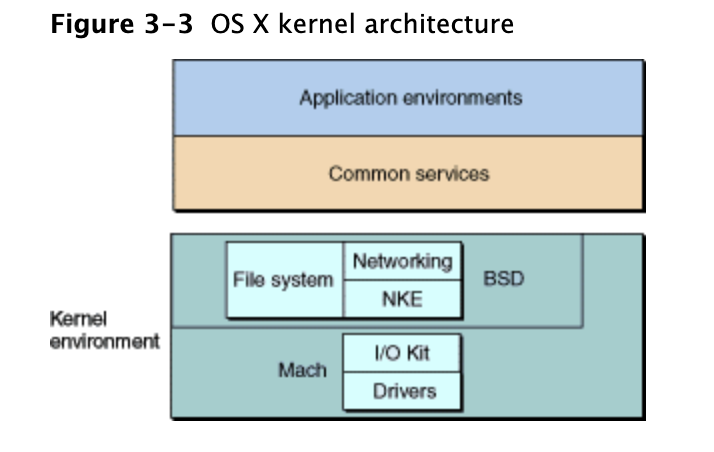
XNU: The Hybrid Kernel
XNU is a hybrid design that combines two distinct kernel architectures.
- MACH The Microkernel Foundation
Mach 3.0 forms the microkernel base of XNU, providing:
Core Abstractions:
- Tasks: The unit of resource ownership (comparable to a process container)
- Threads: The unit of execution within tasks
- Ports: Communication endpoints for inter-process communication (IPC)
- Messages: Data exchanged through ports
BSD: The Unix Personality
- Layered on top of Mach is the BSD subsystem, derived from FreeBSD. This provides the POSIX-compliant Unix interface that applications expect:
- What BSD Brings:
- Process model (fork, exec, signals)
- File system interfaces (VFS layer)
- POSIX APIs (the standard Unix system calls)
- Network stack (TCP/IP, sockets)
- User and permission management
- Unix security model
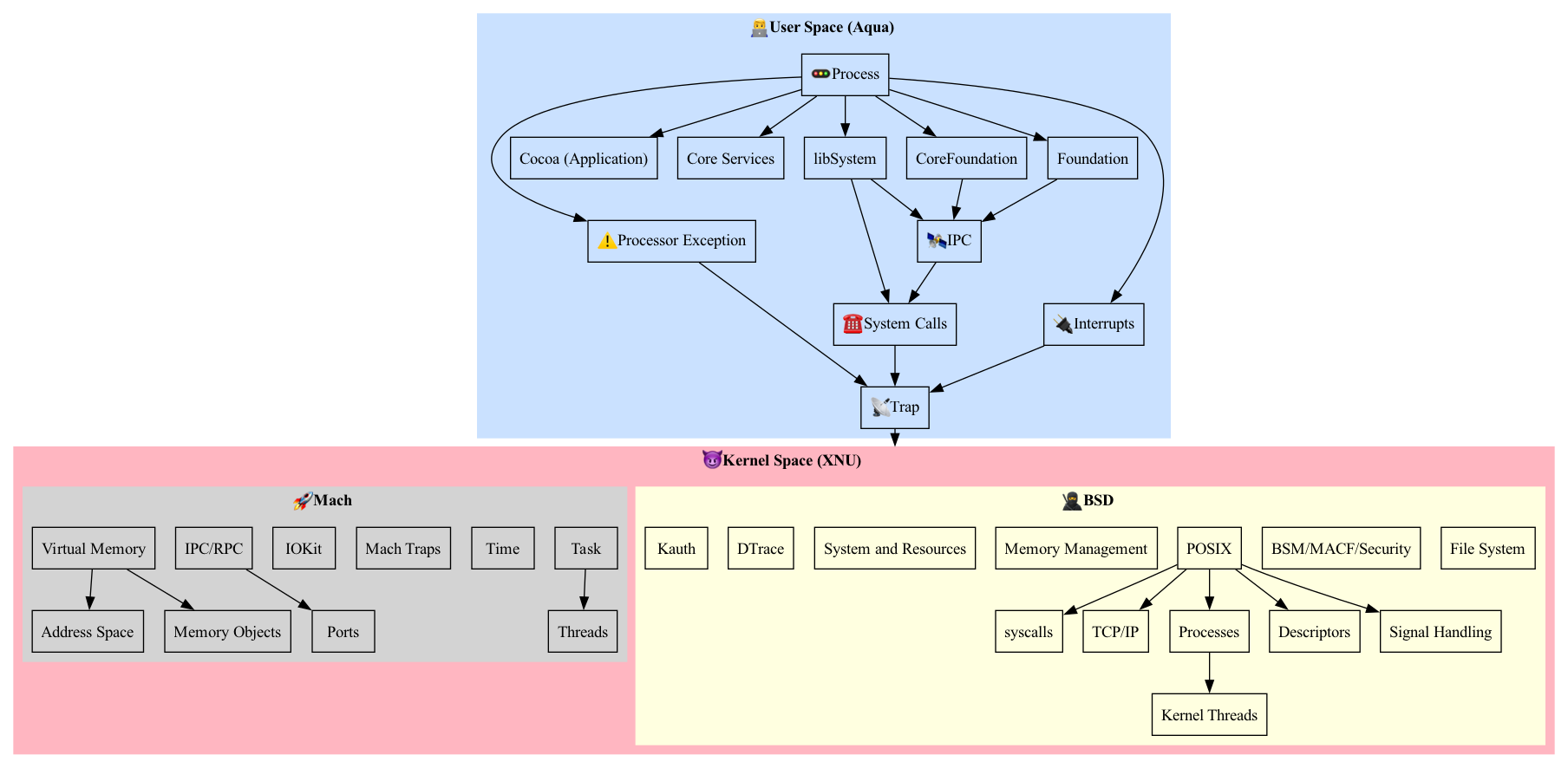 img source: https://github.com/Brandon7CC/mac-monitor/wiki/3.-macOS-System-Architecture
3. APFS: Apple’s Modern File System
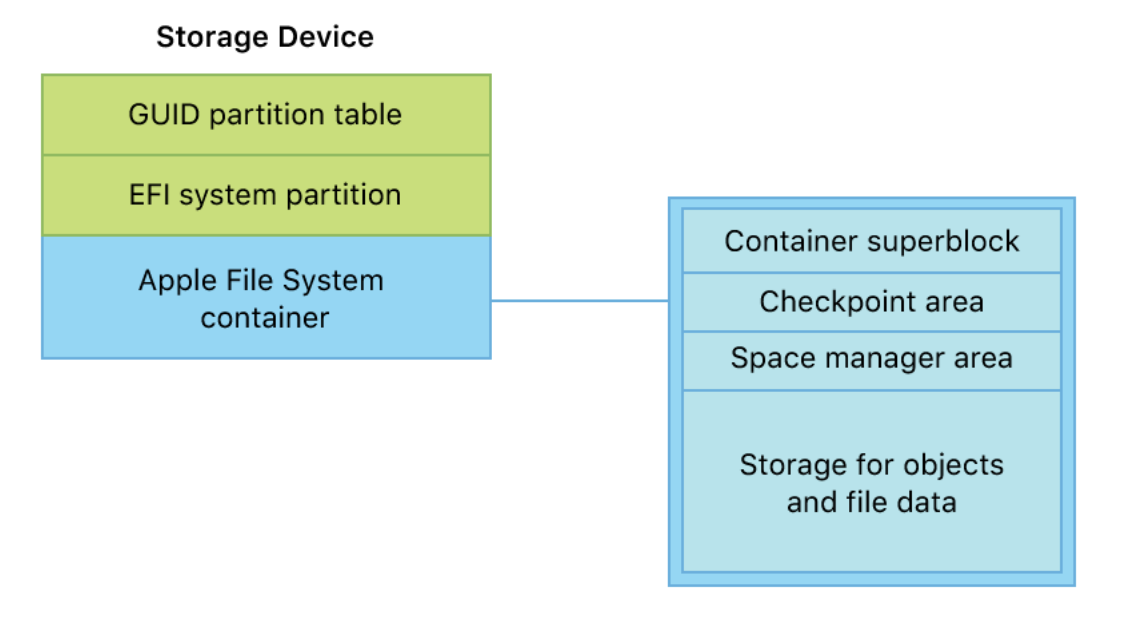 img source : Apple File System Reference: Official, but incomplete APFS spec
Why APFS Matters:
APFS was built for SSDs (though it works on HDDs), with optimization for random access patterns and reduced write amplification—crucial for flash storage longevity.
3.1 Volumes
APFS changes how we think about storage organization:
Container Model:
An APFS container is the outermost structure (essentially a partition) Within a container, you create multiple volumes that dynamically share space.
[APFS Container - 500GB]
├── Macintosh HD (200GB used)
├── Macintosh HD - Data (250GB used)
└── Time Machine (50GB used)
Total: 500GB used from shared pool
-> Unlike traditional partitioning where you must pre-allocate fixed sizes, APFS volumes grow and shrink as needed within the container’s total space. Modern macOS uses a split-volume approach:
- Macintosh HD (System Volume):
- Contains the OS itself (/System, /Applications, /usr)
- Read-only and cryptographically signed
- Protected by Signed System Volume (SSV)
- Macintosh HD - Data (Data Volume):
- Contains user data (/Users, /Applications, /private/var)
- Writable and modifiable
- Persists across OS updates
This separation allows macOS to update the entire system volume atomically while preserving user data.
3.2 Signed System Volume (SSV)
How It Works:
The system volume is sealed with a cryptographic signature at the end of the OS installation. This creates a Merkle tree of hashes covering the entire volume. At boot, the system verifies:
- The root hash matches the signature
- All files match their recorded hashes
- No unauthorized modifications occurred
Benefits:
- Malware cannot modify system files
- Ensures system file integrity
- Enables secure OS updates
- Works seamlessly with System Integrity Protection
Under the Hood:
The snapshot mechanism in APFS makes this possible. The system boots from a sealed snapshot, and macOS creates a new snapshot with each system update
testing its enforcement through Authenticated Root (an enforcement mechanism) :
yosifqassim@KosharyMac Downloads % csrutil authenticated-root status
Authenticated Root status: enabled
3.3 Firmlinks
Firmlinks are APFS’s clever solution to the split-volume architecture:
What Are Firmlinks?
Firmlinks are bidirectional, kernel-level “wormholes” that seamlessly connect directories across volumes. They’re like symbolic links but handled at the file system level.
Common Firmlinks:
- /Users → /System/Volumes/Data/Users
- /private/var → /System/Volumes/Data/private/var
- /tmp → /System/Volumes/Data/tmp
Why They Matter:
Applications expect to find user data at traditional Unix paths like /Users. Firmlinks maintain this illusion while data actually resides on the separate Data volume. This happens transparently apps don’t know they’re crossing volume boundaries.
we can view the system firmlinks through :
yosifqassim@KosharyMac Downloads % cat /usr/share/firmlinks

/AppleInternal AppleInternal

/Applications Applications

/Library Library

/System/Library/Caches System/Library/Caches

/System/Library/Assets System/Library/Assets

/System/Library/PreinstalledAssets System/Library/PreinstalledAssets

/System/Library/AssetsV2 System/Library/AssetsV2

/System/Library/PreinstalledAssetsV2 System/Library/PreinstalledAssetsV2

/System/Library/CoreServices/CoreTypes.bundle/Contents/Library System/Library/CoreServices/CoreTypes.bundle/Contents/Library

/System/Library/Speech System/Library/Speech

/Users Users

/Volumes Volumes

/cores cores

/opt opt

/private private

/usr/local usr/local

/usr/libexec/cups usr/libexec/cups

/usr/share/snmp usr/share/snmp
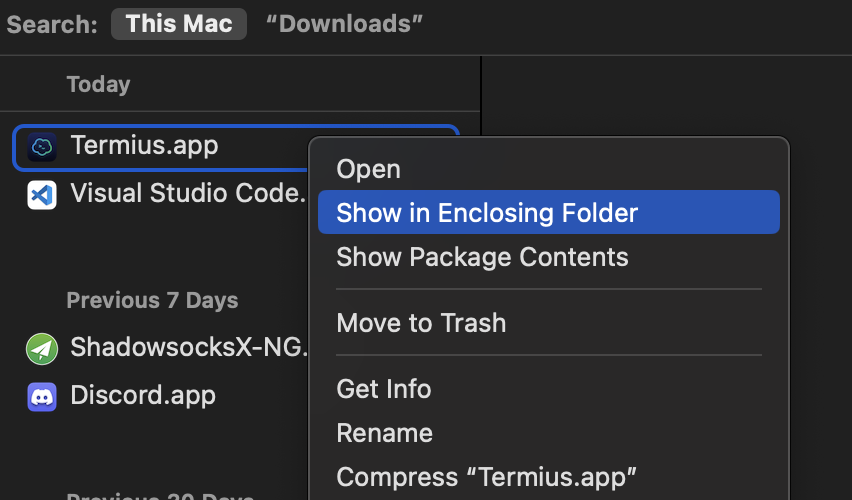
3.4 Bundles - ITS JUST A ZIP FILE !!!!!!!!!!!!!!!!
Bundles are one of macOS’s most elegant concepts—they’re directories that the system treats as single files.
What Is a Bundle?
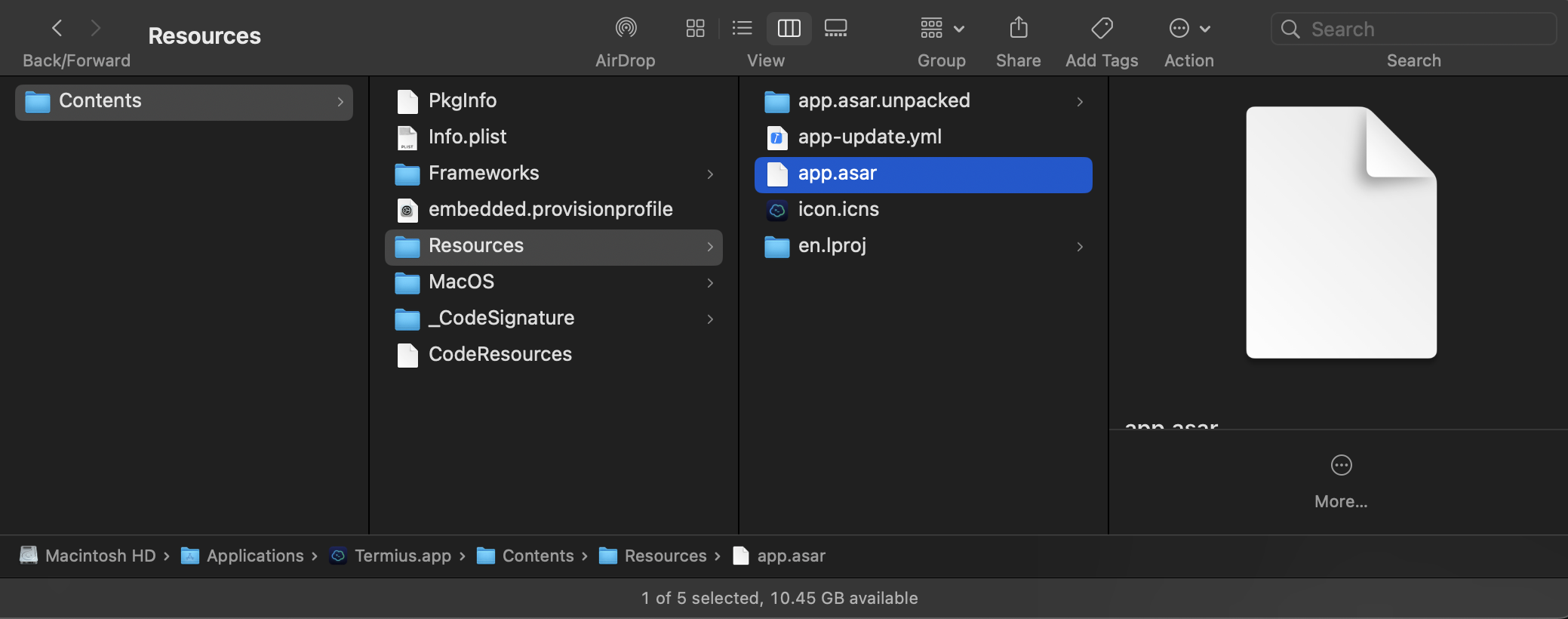
A bundle is a standardized directory structure containing an executable and its resources. The Finder displays bundles as single items, hiding their internal structure from users.
Common Bundle Types:
.app (Applications): <—- ios works in the same way (you cant imagine how many bugs come out just from viewing the internals of these files )
MyApp.app/
├── Contents/
│   ├── Info.plist
│   ├── MacOS/
│   │   └── MyApp (executable)
│   ├── Resources/
│   │   ├── icon.icns
│   │   ├── MainMenu.nib
│   │   └── en.lproj/
│   └── Frameworks/
 .framework (Shared Libraries):
MyFramework.framework/
├── MyFramework (symlink to Versions/Current/MyFramework)
├── Resources (symlink)
├── Headers (symlink)
└── Versions/
    ├── A/
    │   ├── MyFramework (executable)
    │   ├── Resources/
    │   └── Headers/
    └── Current → A
Why Bundles? (because it works !)
- Encapsulation: Everything an app needs is contained
- Localization: Resources for different languages live together
- Versioning: Frameworks support multiple versions
- Installation: Just drag and drop
3.5 PLIST Files: Property Lists
Property Lists (plists) are Apple’s configuration file format, used throughout macOS.
What Are Plists?
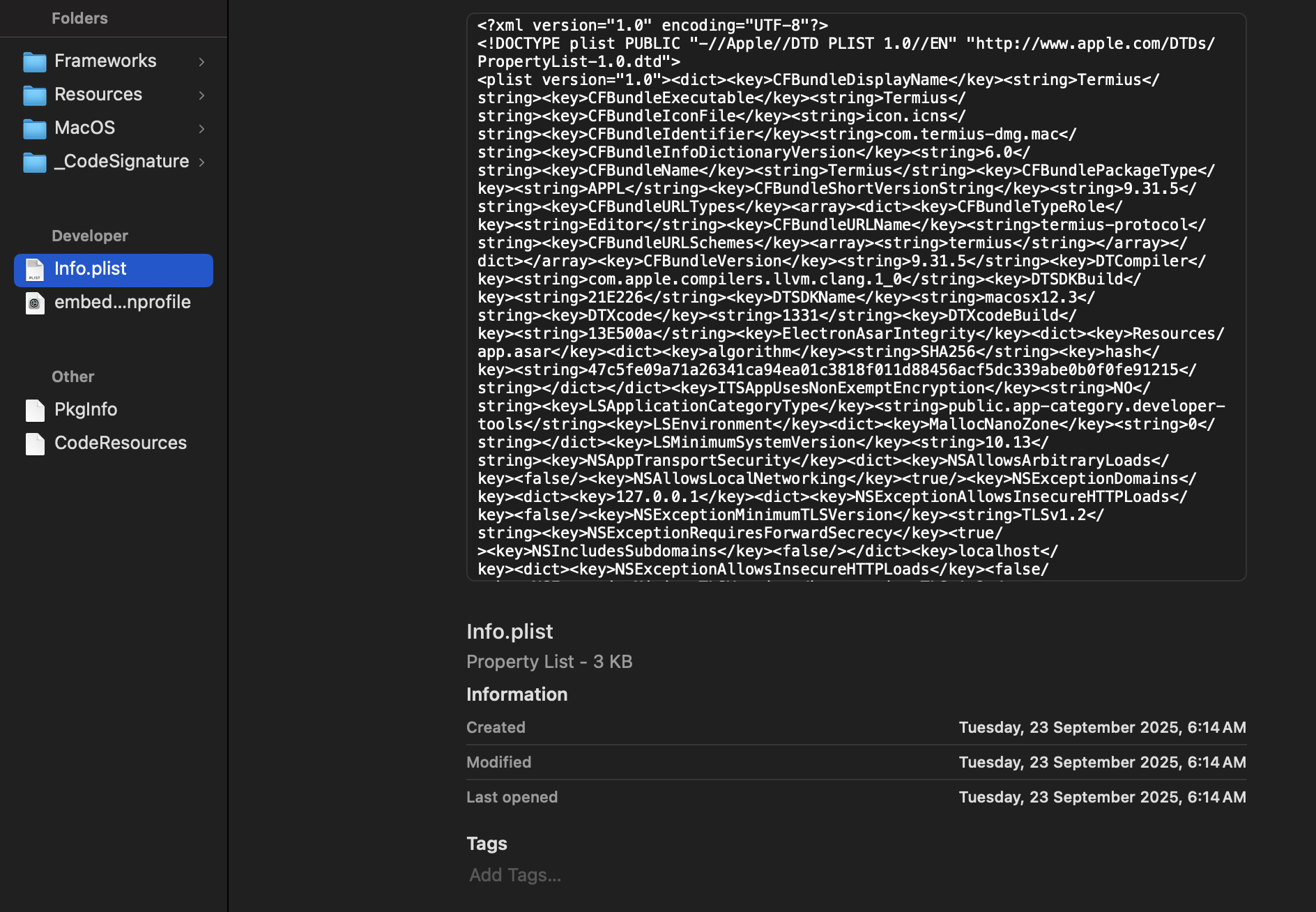
Plists store serialized data in key-value format. They’re XML by default but can be binary or JSON.
Common Uses:
- Info.plist: Bundle metadata
- System configuration
3.6 System Integrity Protection (SIP) - why you cant run debuggers normally
Introduced in OS X El Capitan (10.11), SIP restricts what even the root user can do.
What SIP Protects:
- System files and directories
- Runtime process attachment and debugging <——— the issue for us
- Kernel extension loading <———— the issue for kernal exploitation
- System integrity (NVRAM variables, kernel memory)
How It Works:
SIP is enforced by the kernel. Even process ID 0 (kernel_task) respects SIP restrictions. Certain operations are simply impossible while SIP is enabled, regardless of privileges.
Protected Paths:
/System
/usr (except /usr/local)
/bin, /sbin
Pre-installed /Applications
because of this neat protection you wont be able to use many features of dynamic debuggers easily (or at all) - i turned it off on my machine to be able to use radare on an executable once
3.7 dyld: The Dynamic Linker
Think of dyld as the “librarian” of the operating system. When you double-click an app, the kernel loads the Mach-O binary into memory, but that binary is incomplete—it references dozens or hundreds of external libraries and frameworks. dyld’s job is to find all those dependencies, load them into memory, connect everything together, and hand control over to your application.
- Every single application on your Mac or iOS device goes through dyld. No exceptions.
- One of dyld’s most clever optimizations is the shared cache.
- WAS Located at
/System/Library/dyld/dyld_shared_cache_*, this file contains:- All system frameworks and libraries
- Pre-linked and pre-bound code
- Optimized memory layout
- Merged into a single, mappable file
So Instead of loading 50 separate framework files, dyld can map one large region of the shared cache containing all 50 frameworks already linked together.
4. Mach-O: The Executable Format
- What is Mach-O?
- Mach-O is the file format for:
- Executables
- Dynamic libraries (.dylib)
- Bundles (loadable modules)
- Object files (.o)
- Core dumps
- Mach-O is the file format for:
File Structure Overview:
[Mach-O File]
├── Header
├── Load Commands
├── Segments
│   ├── __TEXT (code, read-only data)
│   ├── __DATA (initialized data)
│   ├── __LINKEDIT (linking information)
│   └── ...
└── Symbol/String Tables
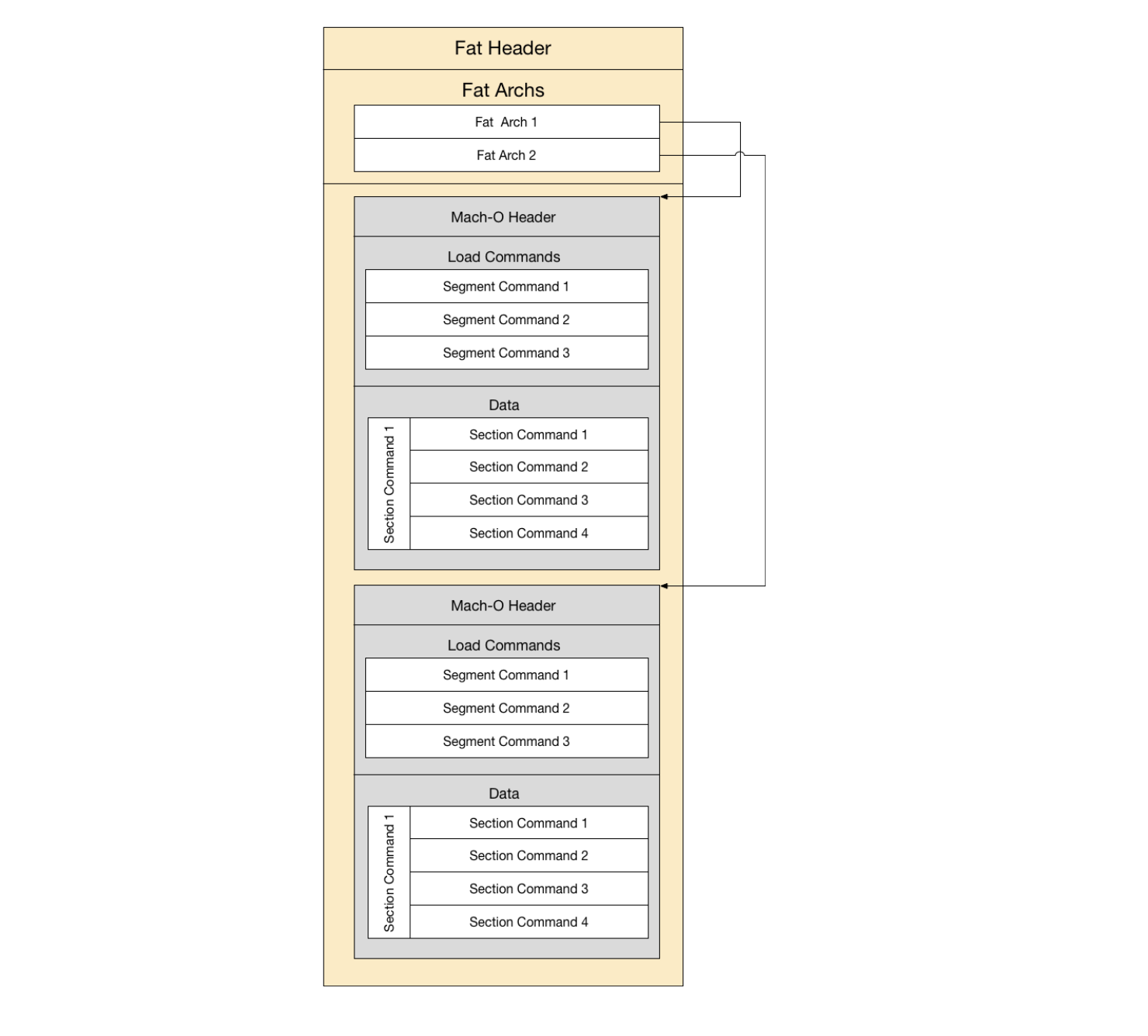
Universal Binaries (Fat Files):
macOS supports “fat binaries” containing multiple architectures:
[Fat Binary]
├── Fat Header
├── x86_64 Mach-O
├── arm64 Mach-O
└── arm64e Mach-O (Apple Silicon with PAC)
This allows a single executable to run on both Intel and Apple Silicon Macs.
Magic Numbers:
0xFEEDFACE: 32-bit Mach-O0xFEEDFACF: 64-bit Mach-O0xCAFEBABE: Universal binary0xCAFEBABF: 64-bit universal binary
4. Mach-O: The Executable Format
Every time you launch an application on macOS, you’re loading a Mach-O file. It’s the native executable format that Apple inherited from NeXT, and it’s been refined over decades to support everything from simple command-line tools to complex GUI applications.
4.1 What Exactly Is Mach-O?
Mach-O (Mach Object) is the container format for executable code on macOS and iOS. Think of it as a precisely structured package that tells the system:
- What architecture this code runs on (Intel x86_64, Apple Silicon arm64)
- Where different parts of the program live in memory
- What libraries it needs
- How to set up memory protections
- Where to find symbols and debugging information
Mach-O is used for:
- Executables: The actual applications you run
- Dynamic Libraries (.dylib): Shared code (like .dll on Windows or .so on Linux)
- Bundles: Loadable plugins and modules
- Object Files (.o): Intermediate compilation output
- Core Dumps: Memory snapshots for debugging crashes
- Kernel Extensions (.kext): Kernel-mode drivers
4.2 The Magic Numbers - File Type Detection
Every Mach-O file starts with a “magic number” - a specific byte sequence that identifies the file type. It’s like a secret handshake:
0xFEEDFACE  →  32-bit Mach-O (little-endian)
0xFEEDFACF  →  64-bit Mach-O (little-endian)
0xCAFEBABE  →  Universal/Fat binary (multiple architectures)
0xCAFEBABF  →  64-bit Fat binary
Notice the playful names? Apple engineers have a sense of humor. You can check any file’s magic number:
xxd -l 4 /bin/ls
00000000: cffa edfe                             ....
# That's 0xFEEDFACF in little-endian = 64-bit Mach-O
4.3 Universal Binaries: One File, Multiple Architectures
Here’s where things get clever. Apple’s transition from PowerPC to Intel, and now from Intel to Apple Silicon, created a problem: how do you ship one app that runs on different CPU architectures?
Solution: Fat/Universal Binaries
A universal binary is like a matryoshka doll - it’s a container holding multiple complete Mach-O binaries, one for each architecture:
[Universal Binary Structure]
├── Fat Header (tells you what's inside)
│   ├── Magic: 0xCAFEBABE
│   ├── Number of architectures: 2
│   └── Architecture descriptors
│       ├── [x86_64: offset 0x4000, size 0x50000]
│       └── [arm64: offset 0x54000, size 0x48000]
│
├── [Offset 0x4000] Complete x86_64 Mach-O executable
└── [Offset 0x54000] Complete arm64 Mach-O executable
When you launch the app, the system automatically picks the right architecture slice and ignores the rest. You can view what’s inside:
file /Applications/Safari.app/Contents/MacOS/Safari
# Output: Mach-O universal binary with 2 architectures
# - x86_64
# - arm64e (Apple Silicon with pointer authentication)

lipo -info /Applications/Safari.app/Contents/MacOS/Safari
# Lists all architectures in detail
Why This Matters:
Universal binaries let Apple support both Intel and Apple Silicon Macs during the transition period. The downside? File sizes roughly double since you’re literally including two complete programs.
4.4 The Mach-O File Structure - Three Main Parts
Every Mach-O file (regardless of type) follows the same basic structure:
┌─────────────────────────────────────┐
│         Mach-O Header               │  ← Who am I? (architecture, file type)
├─────────────────────────────────────┤
│       Load Commands                 │  ← What do I need? (libraries, segments)
├─────────────────────────────────────┤
│         Segment Data                │  ← Here's the actual code and data
│  ┌───────────────────────────┐     │
│  │  __TEXT (code)            │     │
│  ├───────────────────────────┤     │
│  │  __DATA (variables)       │     │
│  ├───────────────────────────┤     │
│  │  __LINKEDIT (symbols)     │     │
│  └───────────────────────────┘     │
└─────────────────────────────────────┘
Let’s break down each part:
4.5 Part 1: The Mach-O Header
The header is the file’s ID card. It’s exactly 32 bytes (on 64-bit systems) and contains:
struct mach_header_64 {
    uint32_t    magic;          // 0xFEEDFACF for 64-bit
    cpu_type_t  cputype;        // CPU architecture (x86_64, arm64)
    cpu_subtype_t cpusubtype;   // Specific CPU variant
    uint32_t    filetype;       // Executable? Library? Bundle?
    uint32_t    ncmds;          // Number of load commands
    uint32_t    sizeofcmds;     // Total size of load commands
    uint32_t    flags;          // Behavioral flags
    uint32_t    reserved;       // Reserved for future use
};
Key Fields Explained:
filetype: Tells you what kind of Mach-O this is
MH_EXECUTE(0x2): Executable programMH_DYLIB(0x6): Dynamic libraryMH_BUNDLE(0x8): Loadable bundleMH_KEXT_BUNDLE(0xB): Kernel extension
flags: Behavioral switches (can have multiple)
MH_PIE: Position Independent Executable (ASLR-enabled)MH_TWOLEVEL: Uses two-level namespace for symbolsMH_NO_HEAP_EXECUTION: Heap isn’t executable (security)
You can inspect headers with otool:
otool -h /bin/ls
# Mach header
#       magic  cputype cpusubtype  caps    filetype ncmds sizeofcmds      flags
#  0xfeedfacf 16777223          3  0x00           2    19       1848   0x00a18085
4.6 Part 2: The Load Commands - The Blueprint
Load commands are instructions that tell dyld (the dynamic linker) how to set up the process. They immediately follow the header and consume the space specified by sizeofcmds in the header.
Think of load commands as a construction blueprint:
“Put the code segment at this address. Load these libraries. Set up this entry point. Configure these memory protections.”
Common Load Commands:
LC_SEGMENT_64 - “Here’s a chunk of data to load into memory”
Command: LC_SEGMENT_64
Segment name: __TEXT
VM Address: 0x100000000
VM Size: 0x4000
File Offset: 0x0
File Size: 0x4000
Protection: r-x (read + execute, no write)
LC_LOAD_DYLIB - “I need this library”
Command: LC_LOAD_DYLIB
Library: /usr/lib/libSystem.B.dylib
Timestamp: 2 (Thursday, January 1, 1970 at 2:00:00 AM)
Current version: 1311.0.0
Compatibility version: 1.0.0
LC_MAIN - “Start execution here” (modern executables)
Command: LC_MAIN
Entry point offset: 0x1bf0
Stack size: 0x0 (use default)
LC_CODE_SIGNATURE - “Here’s my cryptographic signature”
Command: LC_CODE_SIGNATURE
Data offset: 0x5000
Data size: 0x1a0
LC_UUID - “My unique identifier”
Command: LC_UUID
UUID: E0B4A991-6F27-3B2C-A3D8-92F4B2AA1B4E
Why So Many Load Commands?
Modern executables can have 20-40+ load commands. Each one tells dyld something specific about how to prepare the process environment.
View all load commands:
otool -l /bin/ls | less
# or for better readability
otool -l /bin/ls | grep "cmd\|segname\|sectname"
4.7 Part 3: Segments and Sections - Where Everything Lives
Segments are large regions of memory with specific purposes. Inside segments, you have sections - smaller, more specific areas.
The Major Segments:
__TEXT Segment (Read + Execute, never writable)
This is where your actual code lives, along with read-only data:
__TEXT Segment
├── __text          → Your actual machine code
├── __stubs         → Stubs for dynamic library calls
├── __stub_helper   → Helper code for lazy binding
├── __cstring       → C string literals ("Hello, World!")
├── __const         → Constant data
└── __unwind_info   → Exception handling information
Why __TEXT is Read-Only:
Security. Modern systems use W^X (Write XOR Execute) - memory is either writable OR executable, never both. This prevents attackers from injecting and running malicious code.
__DATA Segment (Read + Write, not executable)
This holds your program’s variables and mutable data:
__DATA Segment
├── __data          → Initialized global/static variables
├── __bss           → Uninitialized variables (zeroed at load)
├── __common        → Uninitialized external variables
├── __const         → Data marked const but needs relocation
└── __objc_*        → Objective-C runtime data (classes, methods)
Memory Efficiency:
Multiple processes can share the same __TEXT segment in memory (it’s read-only), but each process gets its own __DATA segment (it’s writable and unique per process).
__LINKEDIT Segment (Read-only)
This is the “metadata” segment containing information for dyld and debuggers:
__LINKEDIT Segment
├── Symbol table       → Function and variable names
├── String table       → Actual string data for symbols
├── Indirect symbols   → Information for dynamic linking
├── Relocations        → Address fixup information
└── Code signature     → Cryptographic signature data
Fun Fact:
The __LINKEDIT segment can be stripped to reduce file size, but you lose debugging symbols and some dynamic linking capabilities.
4.8 Segments vs Sections - The Hierarchy
The relationship is straightforward:
- Segments define large memory regions with uniform protection
- Sections subdivide segments into specific data types
Example structure:
__TEXT Segment (r-x protection)
  ├── __text section    (actual code)
  └── __cstring section (string literals)

__DATA Segment (rw- protection)
  ├── __data section    (initialized vars)
  └── __bss section     (uninitialized vars)
Inspect segments and sections:
otool -l /bin/ls | grep -A3 "sectname\|segname"
# or use a more user-friendly tool
jtool2 -l /bin/ls  # if you have it installed
4.9 The Linking Process - Connecting the Dots
When dyld loads your executable, it has to resolve all external references. Your code calls functions in system libraries, but those aren’t embedded in your binary.
Two Types of Binding:
1. Lazy Binding (the default)
Functions are resolved only when first called. This speeds up launch time.
Your code calls printf()
    ↓
Jump to stub in __stubs
    ↓
Stub jumps to __stub_helper
    ↓
Helper calls dyld to resolve printf
    ↓
dyld finds printf in libSystem.dylib
    ↓
Updates the stub to point directly to printf
    ↓
Future calls go directly to printf (no dyld overhead)
2. Eager Binding
All symbols resolved at launch (slower startup, but predictable behavior).
The Lazy Symbol Pointer Table:
Located in __DATA, this table initially points to stub helpers. After first call, it’s updated to point directly to the resolved function. This is why the first call to a function can be slightly slower than subsequent calls.
4.10 Practical Example: Dissecting /bin/ls
Let’s analyze a real executable:
# What type of file?
file /bin/ls
# Mach-O 64-bit executable arm64

# Check the header
otool -h /bin/ls
# Shows architecture, file type, and flags

# What libraries does it need?
otool -L /bin/ls
# /usr/lib/libutil.dylib
# /usr/lib/libncurses.5.4.dylib
# /usr/lib/libSystem.B.dylib

# What segments exist?
otool -l /bin/ls | grep -A3 "cmd LC_SEGMENT"
# __TEXT, __DATA, __LINKEDIT

# Extract symbols
nm /bin/ls | head -20
# Shows function names, addresses, and types
4.11 Code Signing and Mach-O
Every Mach-O executable on modern macOS is cryptographically signed. The signature lives in the __LINKEDIT segment (specified by LC_CODE_SIGNATURE load command).
What Gets Signed:
- The entire __TEXT segment (code)
- Critical parts of other segments
- Info.plist (for bundles)
- Entitlements (special permissions)
Verification at Runtime:
Before executing any page of code, the kernel verifies its signature. If anything has been modified, execution is blocked.
Check a signature:
codesign -dv /bin/ls
# Shows signature status, team ID, signing date

codesign --verify --verbose=4 /bin/ls
# Detailed verification
4.12 Security Features in Modern Mach-O
Modern macOS executables include several security enhancements:
Address Space Layout Randomization (ASLR):
- Marked by MH_PIE flag in header
- Executable loads at a random base address each run
- Makes exploitation much harder (attacker can’t predict addresses)
Stack Canaries:
- Compiler inserts random values on the stack
- Checked before function returns
- Detects buffer overflow attacks
Pointer Authentication Codes (PAC) - Apple Silicon Only:
- CPU-level feature that cryptographically signs pointers
- Indicated by arm64e architecture
- Makes code injection nearly impossible
Library Validation:
- LC_VERSION_MIN_* commands specify minimum OS version
- Prevents loading on older, unpatched systems
4.13 Tools for Mach-O Analysis
Essential tools for working with Mach-O files:
Built-in Tools:
file        # Identify file type
otool       # Object file displaying tool (Apple's objdump)
nm          # List symbols
lipo        # Manipulate universal binaries
codesign    # Code signing operations
pagestuff   # Display logical pages
Third-Party Tools:
- jtool2: Modern, powerful alternative to otool
- MachOView: GUI app for visual exploration
- Hopper/IDA Pro: Disassemblers that understand Mach-O deeply
- LIEF: Library for parsing/modifying Mach-O files programmatically